
When a switch refuses to accept an optical module the CLI or system log usually gives a short, blunt hint — an error message. Those messages tell you what the switch detected (authentication mismatch, bad EEPROM, unsupported part number, PHY disagreement) and point to a small set of concrete checks you should perform. Below I list the common messages you’ll see across mainstream vendors, explain what each means in plain language, and give the practical next steps to resolve them.
1. “Unsupported transceiver” / “UNSUPPORTED_TRANSCEIVER”
Where you see it: Common on Cisco, Arista, HPE/Aruba and other vendors when the switch refuses to accept a third-party or unexpected module.What it means: The switch’s firmware or policy has determined the module is not on its approved list, or the transceiver’s vendor OUI/part number/EERPOM signature is unknown or blocked. Many vendors intentionally block non-branded optics for support / warranty reasons.What to do: Confirm the part number against the vendor’s optics compatibility matrix. If you must use a third-party module, some platforms offer an explicit enable command (e.g., Cisco’s service unsupported-transceiver or Aruba’s allow-unsupported-transceiver) — but be mindful of support consequences. Always verify reach and optical class after enabling.
2. “gbic-invalid” or “errdisable: gbic-invalid”
Where you see it: Cisco Catalyst logs often show %PM-4-ERR_DISABLE: gbic-invalid and may place the port into an errdisable state.What it means: The switch detected an SFP/GBIC that it either cannot identify or believes is faulty/unsupported and has proactively disabled the interface to avoid flapping or errors.What to do: Try shutdown/no shutdown on the interface, reseat the module, test the same module in another known-good port, and consult the optics interoperability matrix. If you decide the module is acceptable, you can clear the errdisable condition and (where supported) allow unsupported transceivers with the vendor-recommended command — but document the change for support teams.
3. “Module not supported — optical type mismatch” (or similar)
Where you see it: Many vendors log a specific mismatch when the SFP reports a different expected speed/type (e.g., a 10G SFP+ in a port locked to 1G).What it means: The Transceiver’s EEPROM indicates a different class (speed, media type) than the port accepts, or the switch’s port config forces a speed incompatible with the module.What to do: Check the port speed/auto-negotiation configuration, verify the module class (1G vs 10G vs 25G), and if using breakout/adapters ensure the form factor matches the intended electrical lane count. Replacing the module with the correct speed class usually fixes it.
4. “SFP not recognized” / “Unknown transceiver”
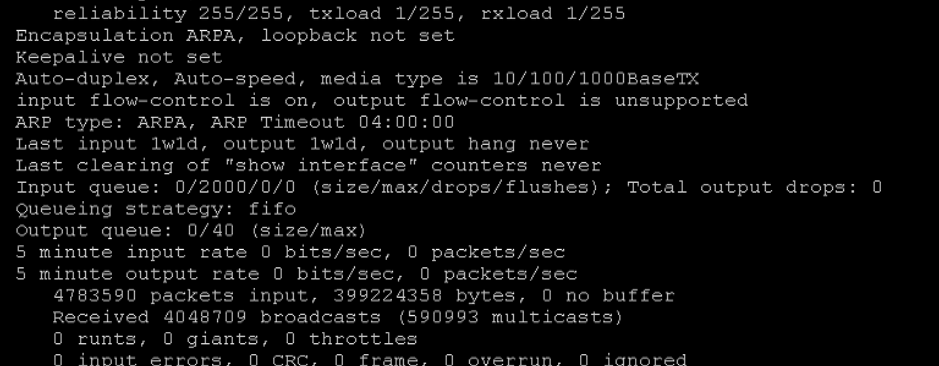
Where you see it: Short message in show outputs (e.g., “Unknown” shown in optics inventory) on Juniper, Cisco, and others.
What it means: Either the transceiver EEPROM is unreadable/corrupted, or the switch couldn’t successfully query the module. This sometimes happens because of a hardware fault, dirty/oxidized pins, or an unsupported vendor signature.
What to do: Reseat the module, clean the contacts, move the transceiver to another port to test whether the issue follows the module or the port, and check for recent firmware bugs that impact module enumeration. If the EEPROM is corrupted, the module will often be unusable and should be replaced. Juniper and other vendors note transient cases but recommend swapping and reboots for diagnosis.
5. “Authentication failed” or vendor-locked messages (proprietary authentication)
Where you see it: HPE/Aruba, some Cisco platforms, and others that implement vendor authentication in the SFP EEPROM.
What it means: The module carries an authentication or signature byte that the switch checks; when the check fails the switch refuses to enable the port. This is a deliberate vendor control to prevent third-party optics.
What to do: Use vendor-approved optics where possible. If you must use third-party parts, some vendors offer configuration to permit unsupported optics (allow-unsupported-transceiver on Aruba AOS-CX or equivalent), or the vendor may issue a license/patch. Beware: enabling unsupported optics can affect support entitlements.
6. “Port is down — PHY negotiation failed” or “No link”
Where you see it: Any vendor; typically appears after the port is enabled but link won’t come up.What it means: The optics were accepted but physical link parameters (speed, duplex, lane polarity, MDIO) don’t match or the fiber/cable is wrong (MMF vs SMF) or damaged. This is different from a rejection — it’s an operational mismatch.What to do: Verify fiber type and LC/MPO wiring, confirm TX/RX alignment, try a loopback or known-good cable, and check transceiver specs (laser type, link budget). If DAC or AOC is used, ensure the cable is passive/active type compatible with the port.
Practical troubleshooting sequence (fast checklist)
-
Reseat & swap — move the module to a known-good port or test a known-good module in the suspect port.
-
Check vendor docs — confirm compatibility with the switch model and firmware. Manufacturers publish optics matrices and KB articles.
-
Inspect EEPROM — if the module appears as “Unknown,” the EEPROM may be corrupt; replace if needed.
-
Verify speed/form factor — don’t plug a 25G module into a 10G-only port or expect an SR4 MPO to behave like duplex LC.
-
Consider policy vs hardware — if the module is perfectly functional but rejected for policy, weigh the risks of enabling unsupported-transceiver commands or buying vendor-approved parts. Vendor docs explain the commands and support implications.
Notes on vendor workarounds and support
Some vendors provide commands or hidden files to allow third-party modules (examples: Cisco’s service unsupported-transceiver, Arista’s older enable3px/license schemes, Aruba’s allow-unsupported-transceiver). These are practical escapes for lab or cost-sensitive environments, but they carry trade-offs: increased troubleshooting surface, potential incompatibilities, and possible impact on vendor support. Document any deviation and run interoperability tests before full deployment.
Final thought
Most “rejected” transceiver problems come down to three root causes: a genuine hardware/EEPROM fault, a speed or fiber mismatch, or vendor policy/authentication. Work methodically: reseat, swap, check config, consult the vendor compatibility matrix, and only then change policy flags or buy replacement optics.
WOLON product note

WOLON supplies factory-tested, vendor-compatible optical transceivers and pre-terminated cabling designed to avoid the common rejection causes above. Each module ships with clear EEPROM labels, optical budget and reach specifications, and a compatibility table for major switch vendors — so you can reduce deployment surprises and keep support simple.
