Direct-Attach Copper (DAC) cables are a low-cost, low-latency way to connect switch-to-switch or switch-to-server ports at 10G/25G/40G and above. But when a link stays down, shows CRC/Rx/Tx errors, or drops intermittently, you need a clear, repeatable DAC troubleshooting flow to find the root cause quickly without guessing. This guide walks you through the most likely causes, the diagnostic commands and tests to run, and the decisive actions to take so you can restore a stable link fast.
Quick summary
If you see one of three symptoms — No Link, Interface Errors (CRC, FCS, Rx/Tx errors), or Intermittent Loss — follow the ordered checks below. The flow favors quickest, lowest-risk checks first (physical/port/config), then moves to firmware/compatibility and replacement/testing. Use the commands and suggested tests to collect evidence before you change parts or escalate to vendor support. This is practical DAC troubleshooting you can run during a maintenance window.
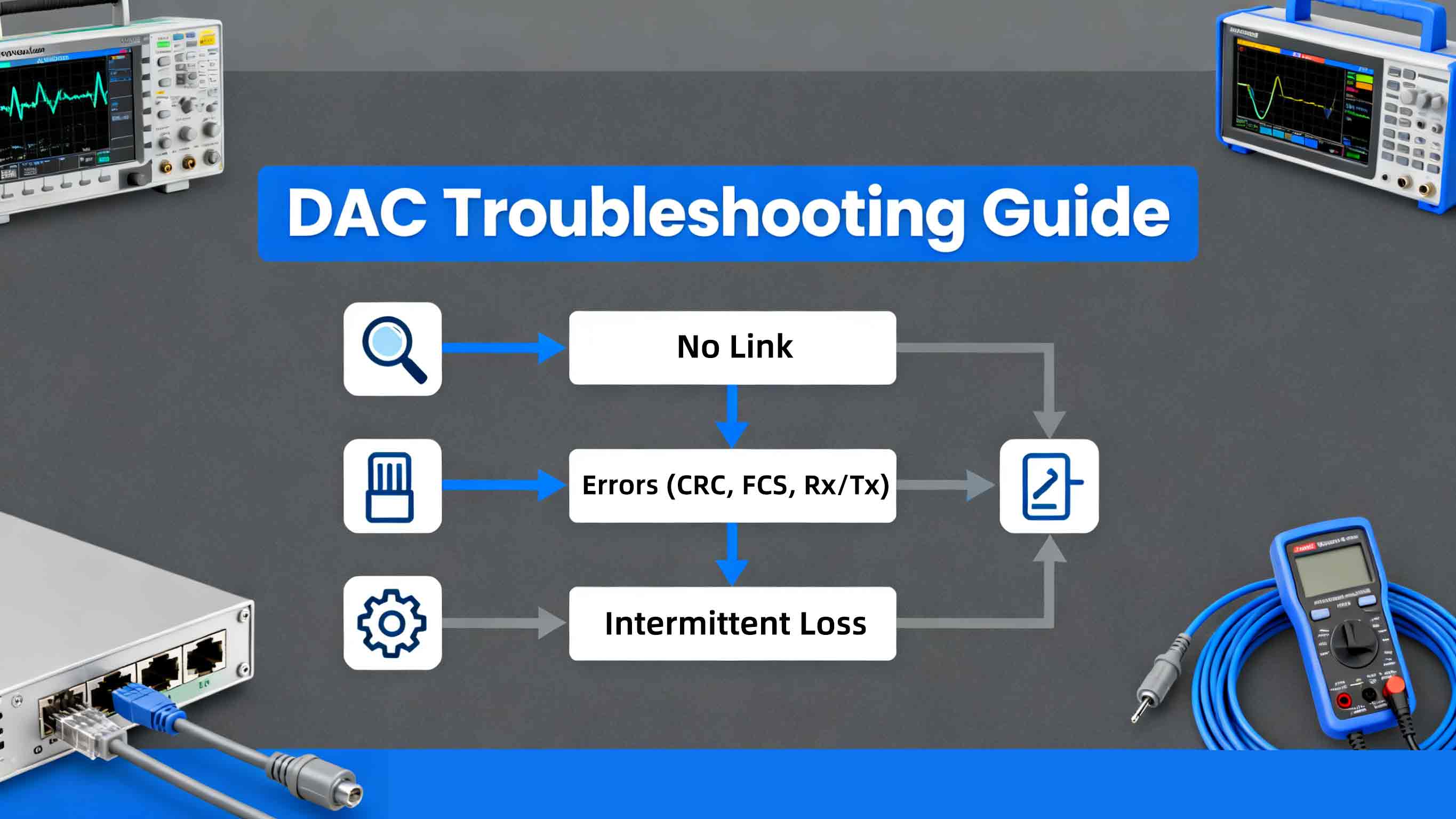
DAC Issues
DAC Issues-No Link: fast checks and common causes
| Root Cause | Corrective Action | CLI Commands / Tools |
|---|---|---|
| ???? Physical Connection Improper seating or latch not engaged. | Physically Reseat: Unplug the DAC from both ends. Inspect for dust. Firmly re-insert until you hear a “click”. Ensure the pull-tab is not stuck. | N/A (Physical Check) |
| ⚙️ Port Configuration Speed mismatch or Administratively Down. | Verify the port is “UP” and auto-negotiation matches. If ports are disabled (shutdown), bring them up manually. |
Switch: show interface status Linux: ip link show Tool: ethtool eth0 |
| ???? Hardware Fault Dead port or defective cable. | A/B Testing: Swap the DAC with a known-good cable. Try plugging into a different known-good port to isolate if it’s the switch or the cable. | Swap Test |
- Firmware Check: Ensure your switch firmware allows third-party modules.
- Unlock Command: You may need to enable settings like service unsupported-transceiver (Cisco) or allow “unsupported mode” in your config.
Errors (CRC, FCS, Rx/Tx): how to triage
Persistent CRC or FCS errors usually indicate physical layer problems (bad cable, connector Contact, electrical noise) or mismatched duplex/forwarding behavior. Follow this triage:
-
Collect interface stats: on Linux use
ip -s link show <if>orethtool -S <if>; on switches useshow interfaces <if> counters. These commands reveal CRCs, symbol errors, drops, and overruns. -
If CRCs are rising: try replacing the DAC with a known-good cable. Many field cases show CRCs drop dramatically after swapping a suspect DAC.
-
Examine error patterns: if errors spike under load, consider thermal or EMI issues; if errors are near constant, suspect physical damage or manufacturing defect. Use port counters and historical monitoring to correlate time and load.
-
Check NIC/switch firmware and drivers—some NIC firmware bugs manifest as spurious errors and are fixed in later releases. Vendor troubleshooting guides (for example, for UCS, DAC, or server NICs) provide specific commands and counters to inspect for bad frames.
Intermittent Loss: hard to reproduce but diagnosable
Intermittent link drops are often caused by one of: marginal cable length/quality, thermal expansion/contraction affecting connectors, loose latching, or intermittent port hardware problems. To debug:
-
Run a continuous ping or iperf while logging interface counters. Correlate loss timestamps with counter spikes.
-
Inspect for heat: heat buildup around QSFP/SFP cages can cause AOC/DAC electronics to reset intermittently — check chassis temps and airflow. If loss occurs during higher ambient temperatures or under sustained load, thermal is likely.
-
Test with a different cable and with the same cable on different ports (to rule out port issues). If the same cable works elsewhere, suspect the original port. If different cables fail on the same port, suspect the port hardware or its firmware.
Step-by-step DAC troubleshooting flow
Follow this ordered checklist every time — it minimizes downtime and helps produce reproducible results for vendor escalation.
-
Document: record device, port, cable type/length, firmware versions, and time windows.
-
Physical inspection: reseat, clean connectors, ensure latches fully engage; try alternate port on the same switch.
-
Swap cable: replace with a verified working DAC cable of the same type/length (passive vs active). If problem disappears, cable is root cause.
-
Check config: verify admin state, speed/duplex (or forced mode if required), and any port profiles. Disable unsupported features that may break link (e.g., unsupported auto-negotiation modes).
-
Collect counters: run
ip -s link,ethtool -S(Linux) orshow interface(vendor CLI); capture logs for CRC, FCS, symbol, and link flaps. -
Firmware/driver: check NIC/switch firmware and driver versions; if third-party DACs are used, check vendor compatibility lists and consider a firmware update or vendor setting change.
-
Environmental tests: check temperature and EMI sources; if intermittent during high load, reproduce with sustained traffic tests.
-
Escalate with evidence: if replacement cable/port swap didn’t fix, open a support ticket with diagnostics: counters, pcap (if useful), serial-numbered cable info, and firmware versions.
When to replace the DAC cable or request RMA
Replace the DAC cable if:
-
A known-good swap fixes the issue.
-
Physical damage, bent pins, or poor latch is visible.
-
Error counters fall to zero after swap.If the cable is new and fails basic tests, collect evidence and request RMA from the supplier (include port stats and test logs).
Preventive best practices
-
Keep a stock of known-good DACs for rapid swap testing.
-
Observe vendor compatibility matrices and maintain firmware of switches/NICs.
-
Label cables by length and type (passive vs active) and log where each SN is used.
-
Use monitoring (SNMP/telemetry) to alert on rising CRCs before they cause outages.
Conclusion
A reproducible DAC troubleshooting flow — physical check, swap, config, counters, firmware, environmental — gets you from symptom to root cause fast. When you follow the steps above and collect interface statistics and logs before changing hardware, you’ll reduce unnecessary part swaps and have the evidence needed for vendor escalation or RMA. For immediate cases, start by reseating and swapping the DAC cable; statistically, that simple step resolves a large fraction of “no link” and many CRC/intermittent issues.
Looking for a fast, reliable fix that starts with better hardware?
Consider WOLON’s DAC solutions. Manufactured to industry standards and available in both passive and active form factors (SFP+/QSFP+/QSFP28), WOLON DAC cables are electrically tested for interoperability and consistency to reduce the time you spend on DAC troubleshooting.
With clear labeling, predictable performance across vendors, and responsive technical support, WOLON makes it easy to swap, test, and restore links quickly.