
Look at the back of your Wi-Fi router or FTTH ONT box. Next to the power jack and the Ethernet ports, you will likely see a small button labeled WPS (often accompanied by an icon of two arrows chasing each other).
If you have never pressed it, you are not alone. Most internet users ignore it until they buy a new wireless printer and the manual tells them to “press the WPS button.”
So, what exactly happens when you press it? Is it safe?
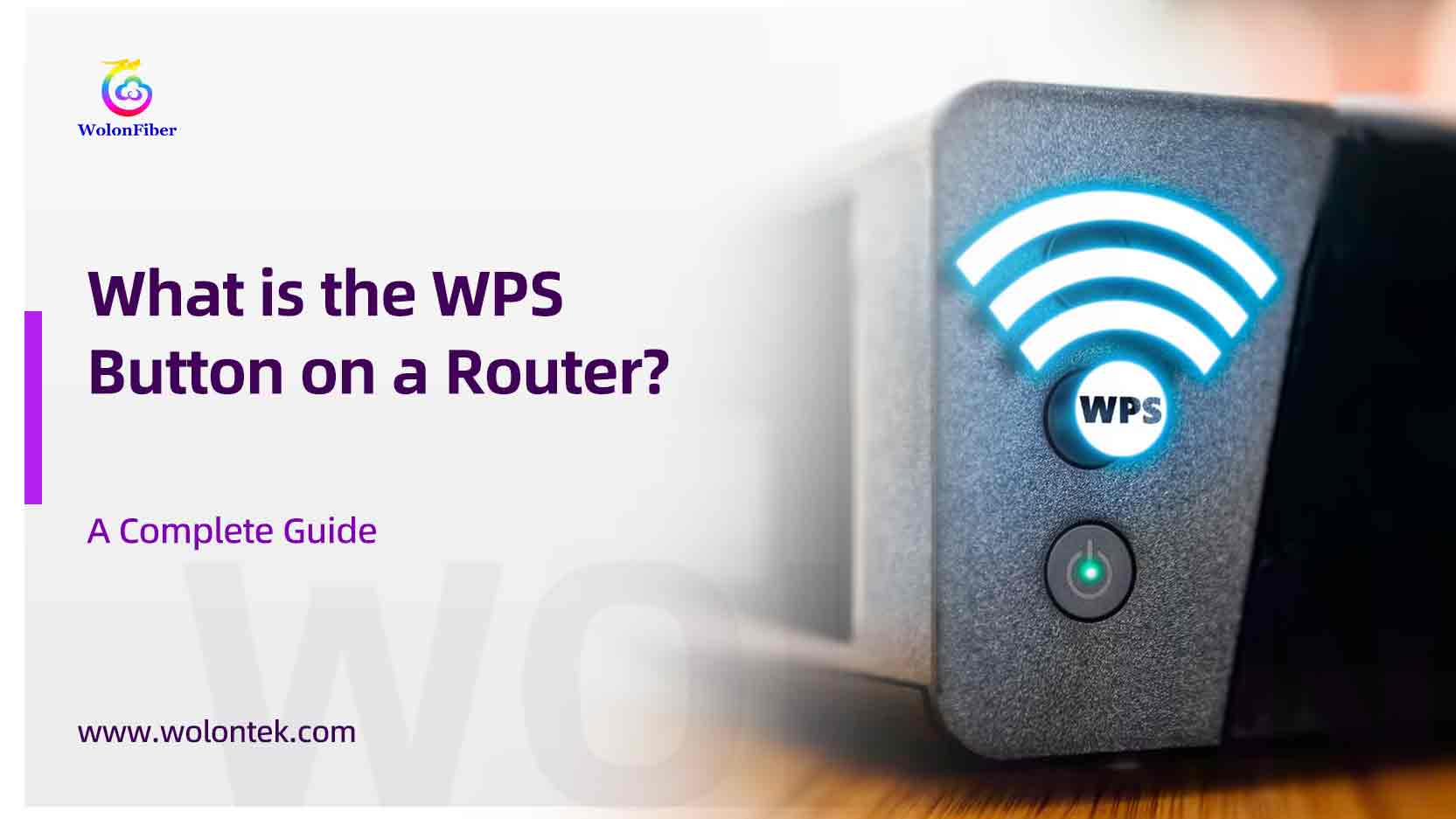
Whether you are a home user trying to connect a smart device, or an ISP field technician provisioning new Gateway ONTs, here is the engineering reality behind the WPS protocol, how to use it, and why security experts often recommend turning it off.
What Is the WPS Button on Router?
WPS stands for Wi-Fi Protected Setup.
Introduced by the Wi-Fi Alliance in 2006, it is a network security standard created for one simple reason: people hate typing long, complex WPA2 Wi-Fi passwords.
The WPS button is a physical shortcut. It allows you to connect compatible wireless devices to your router’s secure network without ever needing to select the network name (SSID) or type in a 16-character password.
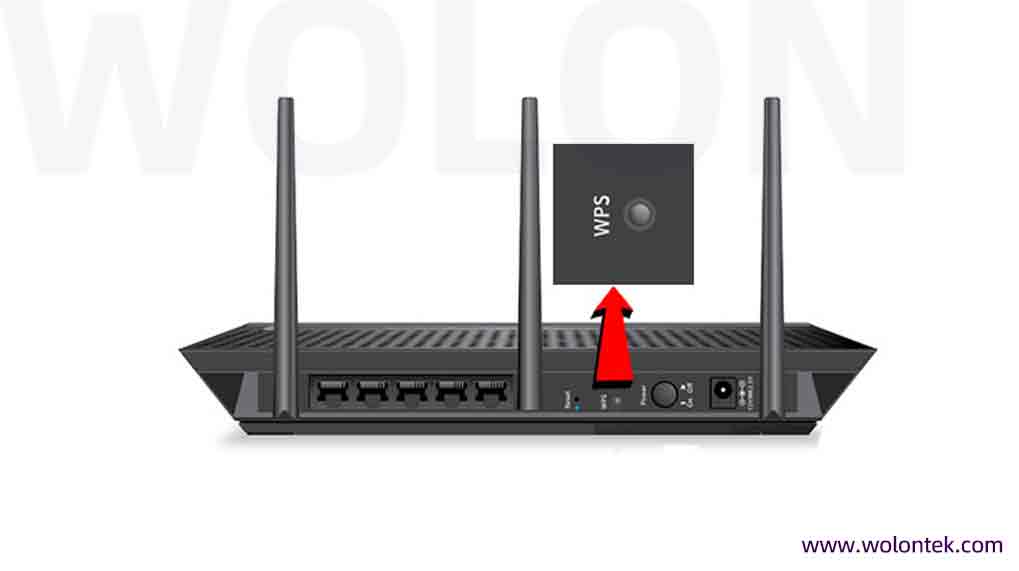
Functions of the WPS Button
The function of the WPS button is to trigger a physical handshake.
When you press the button, the router temporarily opens a two-minute window. During this window, the router actively broadcasts its credentials to any device that is also in “WPS pairing mode.” Instead of the user typing a password, the router and the client device securely exchange the encryption keys over the air automatically.
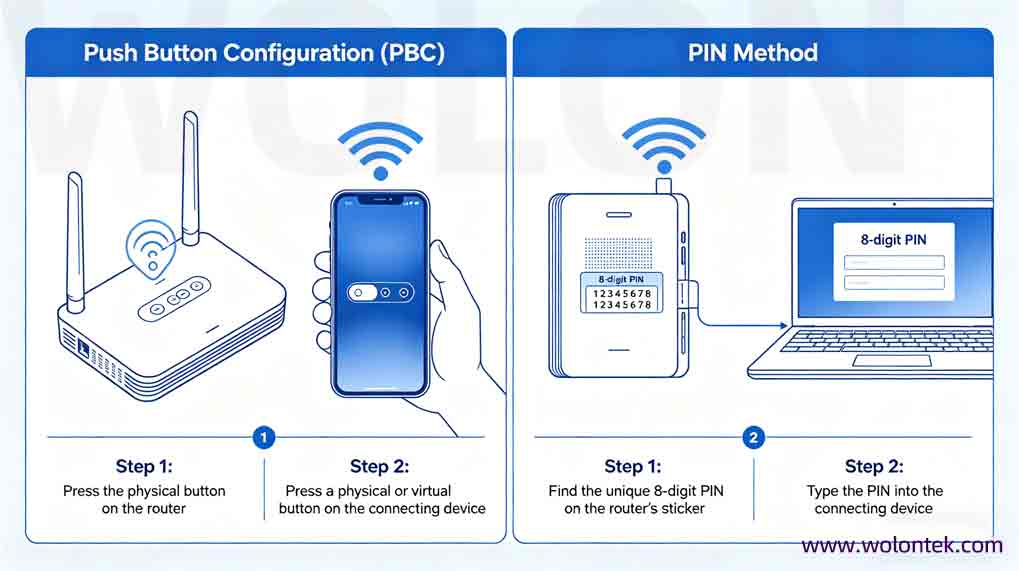
There are technically two ways WPS works:
- Push Button Configuration (PBC): You press the physical button on the router, then press a physical or virtual button on the connecting device.
- PIN Method: A unique 8-digit PIN is printed on the router’s sticker. You type this PIN into the connecting device. (Note: As we will explain later, this PIN method is a massive security risk).
Devices Compatible with WPS
WPS was designed for “headless” devices—hardware that does not have a proper keyboard or screen to easily type a Wi-Fi password.
- Highly Compatible: Wireless printers, Wi-Fi range extenders, smart TVs, and older IoT smart home devices.
- Windows PCs: Fully supported. You can press the WPS button instead of typing the password when prompted in the Windows Wi-Fi menu.
- Android Devices: Historically supported. However, Google completely removed WPS support starting in Android 9 (Pie) due to security vulnerabilities.
- Apple Devices: Zero compatibility. Apple (iOS, macOS, iPadOS) has never supported WPS. They consider the protocol too insecure. You must type the password or use Apple’s proprietary Wi-Fi sharing feature.
Advantages and Disadvantages of WPS
Like most convenience features in networking, WPS comes with a heavy trade-off.
The Advantages
- Zero Typing: You don’t need to remember or find the Wi-Fi password sticker.
- Speed: Connecting a stubborn wireless printer takes 10 seconds instead of 10 minutes of navigating terrible menu screens.
- No Password Sharing: You can let a guest connect to your network without actually handing them your WPA2 password string.
The Disadvantages (The Security Threat)
The push-button method is relatively safe because an attacker needs physical access to your router. However, the WPS PIN method is a legendary security disaster.
The 8-digit PIN is split into two halves. This means a hacker doesn’t have to guess one 8-digit number (100 million combinations); they only have to guess a 4-digit number, twice (11,000 combinations). Using basic brute-force tools like Reaver, an attacker sitting outside your house can crack your WPS PIN in a few hours, bypassing your ultra-secure WPA2 password completely.
| Advantages | Disadvantages (Security Risks) |
|---|---|
| Zero typing required; no need to memorize or look for the Wi-Fi password sticker | The WPS PIN method poses a severe security vulnerability |
| Fast connection; e.g., connecting a wireless printer only takes 10 seconds | The 8-digit PIN is split into two 4-digit parts, drastically reducing brute-force difficulty (only 11,000 total combinations vs. 100 million for a full 8-digit code) |
| Allows guest network access without sharing the actual WPA2 password | Attackers can use tools like Reaver to crack the WPS PIN within hours and bypass the secure WPA2 password entirely |
| Push-button WPS is relatively safe (requires physical router access), but the PIN method is a major security flaw |
How to Use WPS on Router & Connect Your Devices
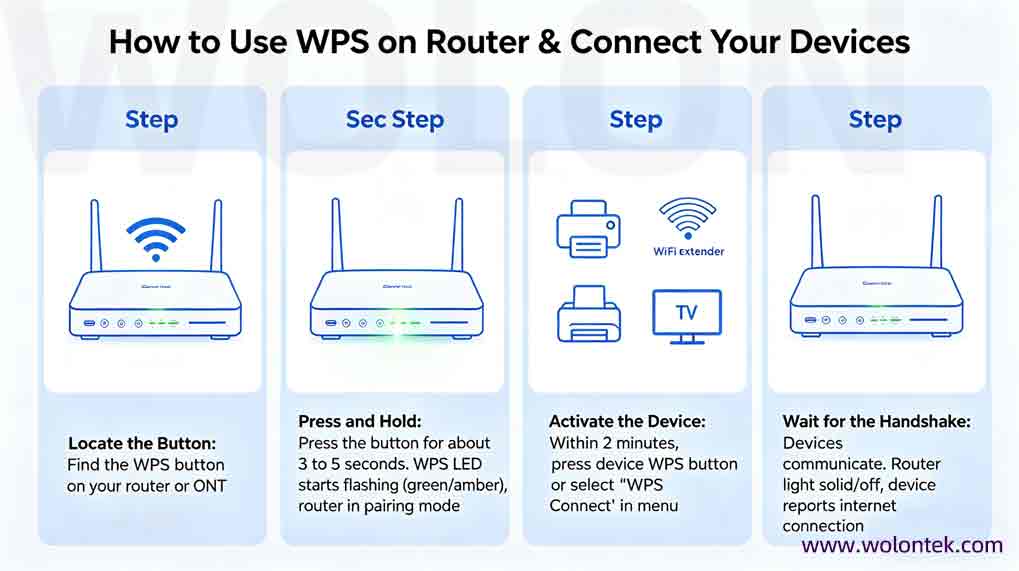
If you want to use the Push Button Configuration (PBC) to connect a device, the process is universally standard across almost all hardware:
- Locate the Button: Find the WPS button on your router or ONT.
- Press and Hold: Press the button for about 3 to 5 seconds. Look at the front panel of the router. You should see the WPS LED start flashing (usually green or amber). The router is now in pairing mode for exactly 2 minutes.
- Activate the Device: Within those 2 minutes, go to your printer, Wi-Fi extender, or smart TV, and press its corresponding WPS button (or select “WPS Connect” in its digital menu).
- Wait for the Handshake: The devices will communicate. Once successful, the flashing light on the router will turn solid or turn off, and your device will report it is connected to the internet.
How to Disable WPS on Your Router
Because of the severe vulnerabilities associated with the PIN method, almost all network security architects recommend disabling WPS entirely if you are not actively connecting a headless device.
To shut it down:
- Open a web browser and type your router’s default gateway IP (usually
192.168.1.1or192.168.0.1). - Log in using the admin credentials printed on the back of the unit.
- Navigate to Wireless Settings, Advanced Setup, or Security.
- Look for the WPS or Wi-Fi Protected Setup toggle.
- Switch it to Disabled or Off. Save your settings.
Pressing the physical button on the router will now do nothing.
Equipping ISPs with Secure Hardware
For Internet Service Providers (ISPs) rolling out fiber-to-the-Home (FTTH) networks, balancing end-user convenience with network security is a constant battle. Issuing endpoint hardware that is vulnerable to brute-force attacks leads to compromised networks and expensive customer support calls.
At WolonFiber, we manufacture the physical gateways that power secure FTTH deployments.
Operating from our 400-employee manufacturing facility in Wuhan’s Optical Valley, we build enterprise-grade Gateway ONTs (Optical Network Terminals). We provide ISPs with robust firmware control, allowing network operators to manage features like WPS remotely via TR-069. You can choose to ship your ONTs with the vulnerable PIN method hard-disabled at the factory level, ensuring your subscribers get the convenience of push-button connectivity without the massive security holes.
👉 [Explore WolonFiber’s Factory-Direct FTTH Gateway ONTs and Wi-Fi Solutions]
What is the WPS button on my router?
WPS stands for Wi-Fi Protected Setup. The button allows you to quickly connect wireless devices (like printers or Wi-Fi extenders) to your secure network without having to type in your long Wi-Fi password.
Is it safe to press the WPS button?
Pressing the physical button is generally safe because it only opens the connection window for two minutes. However, the WPS “PIN method” (typing an 8-digit code) is highly vulnerable to hacking, which is why many experts suggest disabling WPS entirely in the router’s settings.
Why does my Apple iPhone not connect using WPS?
Apple has never supported the WPS protocol on iOS or macOS devices. They consider the protocol a security risk. To connect an iPhone or Mac to your Wi-Fi, you must manually type the password.
How do I disable WPS on my router?
You cannot disable it using the physical button. You must log into your router’s web interface (usually via 192.168.1.1), navigate to the Wireless or Advanced Security settings, and toggle the Wi-Fi Protected Setup feature to “Disabled.”